Editing a Timelog for a Task
To edit an existing timelog for a task, follow these steps:
- Edit the task to display the Edit Task screen.
- On the Edit Task screen, go to the Actual Duration section and click on the Edit Timelogs button.
- On the Timelogs screen, select the timelog and click the Edit toolbar button to display the Edit Timelog screen.
Editing a Timelog for an Activity
To edit an existing timelog for an activity, follow these steps:
- Edit the activity to display the Edit Activity screen.
- On the Edit Activity screen, go to the Actual Duration section and click on the Edit Timelogs button.
- On the Timelogs screen, select the timelog and click the Edit toolbar button to display the Edit Timelog screen.
Editing a Timelog for a Task (using Edit Project screen)
To edit an existing timelog for a specifc project's task, follow these steps:
- Edit the project to display the Edit Project screen.
- On the Edit Project screen, go to the Actual Duration section and click on the Edit Timelogs button.
- On the Timelogs screen, select the timelog and click the Edit button to display the Edit Timelog screen.
Editing a Timelog for a Specific Staff
To edit an existing timelog for a specifc staff, follow these steps:
- Edit the staff to display the Edit Staff screen.
- On the Edit Staff screen, go to the Timelogs section and click on the Edit Timelogs button.
- On the Timelogs screen, select the timelog and click the Edit toolbar button to display the Edit Timelog screen.
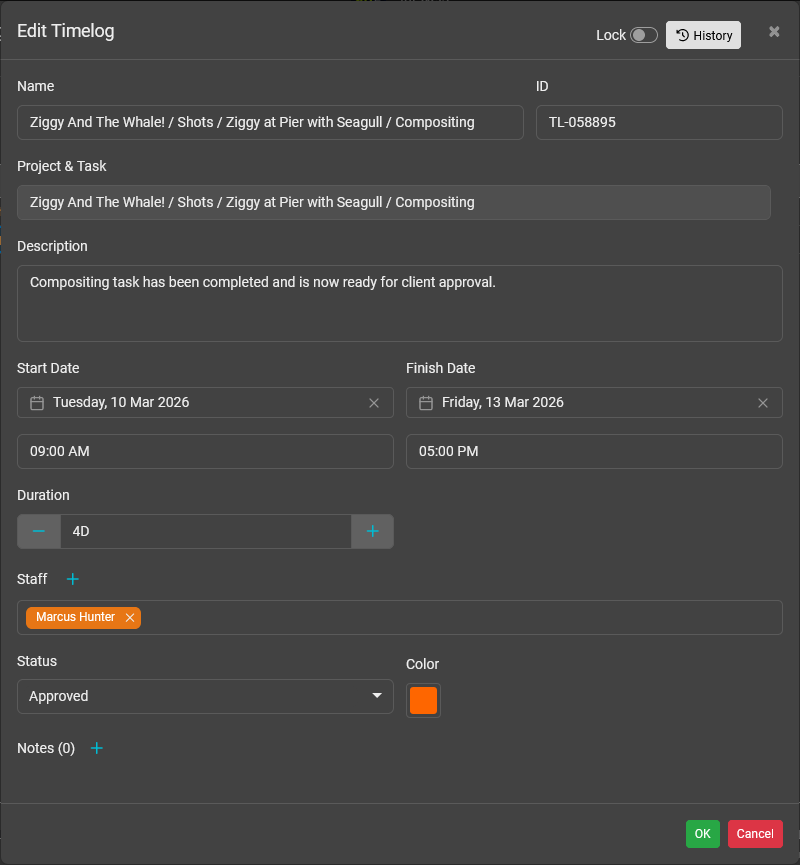
Name
Enter the name of the timelog. By default, the timelog adopts the name of the task or activity associated with the the timelog. You can change it to a more meaningful name.
ID
Enter an optional identifier for the timelog.
Project & Task
This is the project and task that the timelog is being associated to.
Activity
This is the activity that the timelog is being associated to.
Description
Enter an optional description of the timelog.
Start Date
Select the start date and time for the timelog.
Finish Date
Select the finish date and time for the timelog.
Duration
Enter a duration of time spent working on the task or activity. You can use the following units to specify the time required:
- m - minutes. Example: 30m = 30 minutes.
- h - hours. Examples: 6h = 6 hours. 1.5h = 90 minutes.
- D - days. Examples: 10D = 10 days. 3.5D = 3.5 days.
- W - weeks. Examples: 3W = 3 weeks. 6.5W = 6.5 weeks.
- M - months. Example: 2M = 2 months. 1.25M = 1.25 months.
- Y - years. Example: 1Y = 1 year. 2.5Y = 2.5 years.
Staff
Click the Add Staff button to select the staff member associated with timelog for the task or activity.
Status
Select the status of the timelog.
Color
Select an optional color for the timelog for easier identification.
Notes
Clci the Add Note button to add notes into the timelog entry.
Was this article helpful?
That’s Great!
Thank you for your feedback
Sorry! We couldn't be helpful
Thank you for your feedback
Feedback sent
We appreciate your effort and will try to fix the article