Timelogs can be viewed and managed in a variety of ways in Projectal:
- You can view and manage all the timelogs for a task
- You can view and manage all the timelogs for an actiivty
- You can view and manage all the timelogs for a project
- You can view and manage all the timelogs for a staff member
Managing Timelogs for a Task
To view, add, change or delete timelogs for a task, follow these steps:
- Edit the task to display the Edit Task screen.
- On the Edit Task screen, go to the Actual Duration section and click on the Edit Timelogs button.
Managing Timelogs for an Activity
To view, add, change or delete timelogs for an activity, follow these steps:
- Edit the activity to display the Edit Activity screen.
- On the Edit Activity screen, go to the Actual Duration section and click on the Edit Timelogs button.
Managing Timelogs for a Project
To view, add, change or delete timelogs for a project, follow these steps:
- Edit the project to display the Edit Project screen.
- On the Edit Project screen, go to the Actual Duration section and click on the Edit Timelogs button.
Managing Timelogs for a Staff
To view, add, change or delete timelogs for a staff, follow these steps:
- Edit the staff to display the Edit Staff screen.
- On the Edit Staff screen, go to the Timelogs section and click on the Edit Timelogs button.
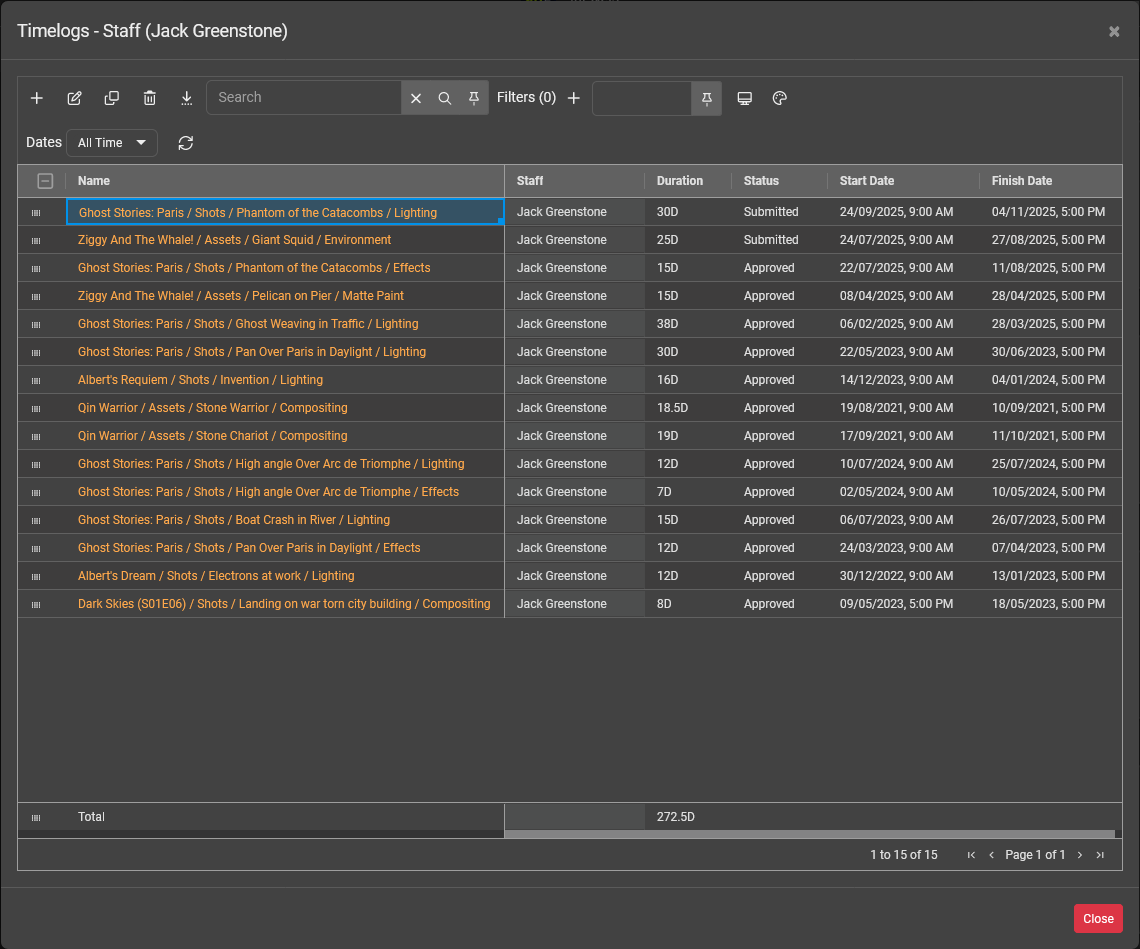
The Timelogs screen toolbar has the following buttons:
- Add - to add a new timelog
- Edit - to edit the selected timelog
- Delete - to delete the selected timelogs
- Duplicate - to make a copy of the selected timelog
- Export - to export the list of timlimgs to an Excel spreadsheet (XLS) file
- Quick Search - to search and filter the list of timelogs using some text
- Filter - to search and filter the list of timelogs using fields
- User Views - to save and recall your favorite user views on this screen
- Color By - to color the list of timelogs by the designated color of a selected data attribute
Select a date range from Dates that you wish to see the timelogs for. If you select a custom date range, then click the Refresh button to update the list of timelogs.
Example: Select All Time from Dates to see all timelogs.
Example: Select Last Year from Dates to see all timelogs logged during last year.
Editing Timelogs
Double-click on a cell to edit a value for the timelog.
Select a cell and copy (Ctrl+C) and paste (Ctrl+V) the values into another cell.
Select a cell and drag the right side corner of the cell to fill down the value into other cells.
Select a cell and press the DEL key to delete the value from the cell.
Tip: Click on the Options menu in the column headers to choose which columns you wish to hide or show in the list. Tip: Click on a column header to sort the list ascending or descending. Press SHIFT + click on multiple column headers to sort by multiple columns.Was this article helpful?
That’s Great!
Thank you for your feedback
Sorry! We couldn't be helpful
Thank you for your feedback
Feedback sent
We appreciate your effort and will try to fix the article