When you assign a staff to a booking, task or activity, the Edit Staff Utilization screen is displayed to let you customize their assignment.
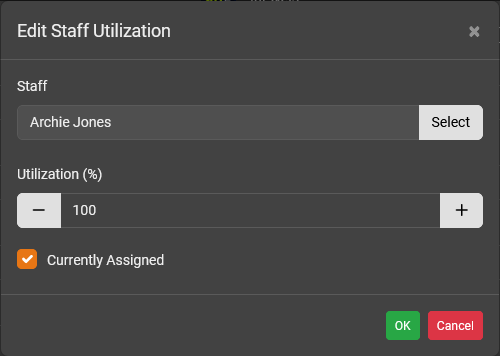
Utilization
Select the level of assignment that the staff is assigned to the task, booking or activity. This indicates how busy they are on this task, booking or activity. The utilzation value is used by Projectal as one of teh factors determine staff costs and availablity.
Example: A utilization of 100% indicates the staff is full time working on the task, booking or activity.Example: A utilization of 50% indicates the staff is spending half their time working on the task, booking or activity.Example: A utilization of 0% indicates the staff is spending no time working on the task, booking or activity.Currently Assigned
Click the Currently Assigned checkbox if the staff is actively working on the task or activity.
If the staff has completed their work and is no longer actively working on the task or activity, then this checkbox can be deselected and the Staff Planner can be used to show only those staff that are currently assigned. This lets you ignore the past staff that have worked on this task or activity.
Tip: On the Staff Planner screen, select the Show events for currently assigned staff setting to only view the tasks and activities for staff that are actively working on them.Tip: On the Edit Task or Edit Activity screens, deselect the Show All Assignments checkbox to only list the currently assigned staff for the task or activity.Was this article helpful?
That’s Great!
Thank you for your feedback
Sorry! We couldn't be helpful
Thank you for your feedback
Feedback sent
We appreciate your effort and will try to fix the article