As your staff enter timelogs for tasks and activities, you will want to see reports on the actual duration and actual costs associated with these timelogs for your projects, departments, locations and staff.
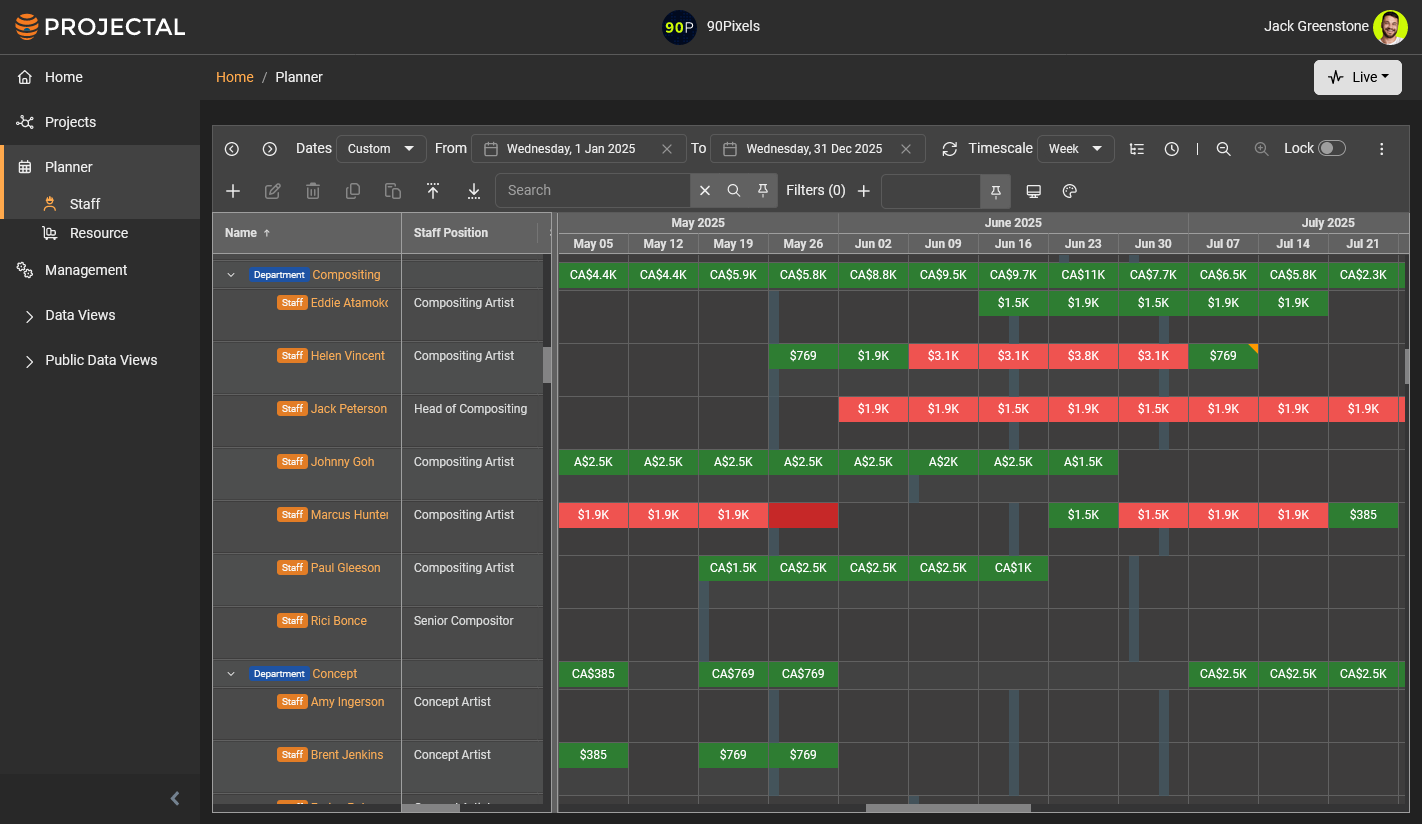
The Staff Planner and Resource Planner lets you view Actual Duration and Actual Costs as dynamic usage metrics. You can view them day-to-day, week-to-week, month-to-month, or year-to-year. You can set the date range (e.g. last 12 weeks). You can filter to see specific staff, projects, locations or departments. You can export the data into Excel spreadsheets.
To view an Actual Duration report in Staff Planner or Resource Planner, click on the Display toolbar button and click the Actual Duration Hours or Actual Duration Days menu items. It will display the actual duration usage metrics for the given date range.
To view an Actual Cost report in Staff Planner or Resource Planner, click on the Display toolbar button and click the Actual Cost or Actual Cost (Net) menu items. It will display the actual cost usage metrics for the given date range.
Was this article helpful?
That’s Great!
Thank you for your feedback
Sorry! We couldn't be helpful
Thank you for your feedback
Feedback sent
We appreciate your effort and will try to fix the article