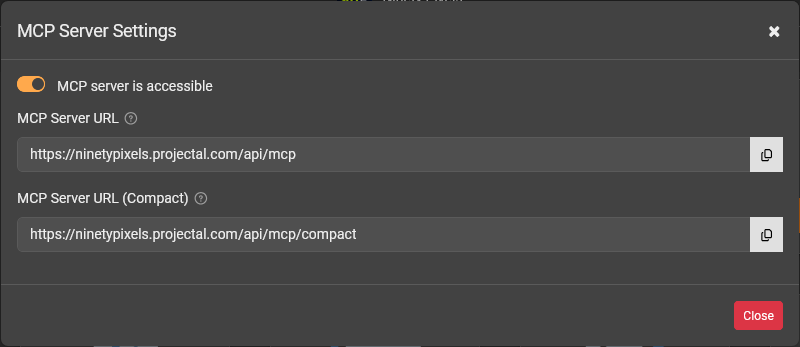
The MCP Server Settings screen lets you turn on/off accessing the MCP server and tells you the URL that you should use in AI agents and LLMs.
Getting to the MCP Server Settings screen
- Go to the Management screen by clicking Management on the left sidebar.
- Click the MCP Server button to display the MCP Server Settings screen.
MCP Server Switch
Turn the switch off if you do not want to permit any access to your Projectal MCP server. When turned off, no user will be able to use their AI agent or LLM or Agentic Workflow to access your Projectal MCP server.
Turn the switch on to permit access to your Projectal MCP server. When turned on, only those users with the MCP Server Access permission enabled will be able to use their AI agent or LLM or Agentic Workflow to access your Projectal MCP server.
Projectal provides two URLs for its MCP server - (i) one URL to access the full set of tools, and (ii) one URL to access a reduced set of tools for retrieval purposes only. This allows you to use the MCP server is various configurations.
MCP Server URL
This is the URL that you will need to provide to your AI Agent to access your Projectal MCP server with the full set of tools. Click the Copy to Clipboard button to copy the URL.
Note: This MCP Server URL is for the fully featured MCP server containing the full set of tools - including query, get, add, update, delete, clone, link, history, sandbox and system. It is ideal when you need your AI tool to have full control over your Projectal. When using this URL with your AI tool, your AI tool will consume more tokens to load the full set of tools as compared to the Compact URL, which has a reduced set of tools. It is recommended to use this MCP Server URL if:
- Your AI tool is powerful enough to load all tools in the MCP server and process your prompts and commands.
- Or, you wish to perform many different actions using your AI tool on your Projectal - including retrieving, adding, updating and deleting information from your Projectal.
Example: You have a Claude or ChatGPT subscription. These are cloud-based LLMs and are powerful enough toload the full set of tools in the MCP server.
Example: You wish to automate the creation of sandboxes and projects in order to bid and budget on new projects. In this case, you will need the fully featured URL for the MCP server since you need your AI tool to add sandboxes, projects and tasks.MCP Server URL (Compact)
This is the compact URL that you will need to provide to your AI Agent to access your Projectal MCP server with a reduced set of tools. Click the Copy to Clipboard button to copy the URL.
Note: This MCP Server URL is for compact MCP server containing a reduced set of tools - namely, query and get. It is ideal when you wish to only retrieve information from your Projectal. When using this URL with your AI tool, your AI tool will consume less tokens as compared to the full featured URL, which includes all tools. It is recommended to use the compact MCP Server URL if:
- Your AI tool is installed on your computer with a smaller LLM. The compact URL should allow the tools to be loaded within your AI tool and allow you to prompt to retrieve information from your Projectal.
- Or, you only wish to retrieve information from your Projectal. Your AI tool will be restricted from adding, updating and deleting information using this compact URL.
Example: You have installed LM Studio on your computer and are using a downloaded model. It is not able to load or process the full set of tools in the MCP server. In this case, you should use the compact URL for the MCP server so that you can retrieve the information you require.
Example: You only need to retrieve information from your Projectal using your AI tool, so you can use the compact URL for the MCP server.
Was this article helpful?
That’s Great!
Thank you for your feedback
Sorry! We couldn't be helpful
Thank you for your feedback
Feedback sent
We appreciate your effort and will try to fix the article